
The receiver was fine. Getting SDR++ to recognize it involved a missing library path, an SDRplay background service, intermittent USB errors, and an unexpected macOS startup problem.
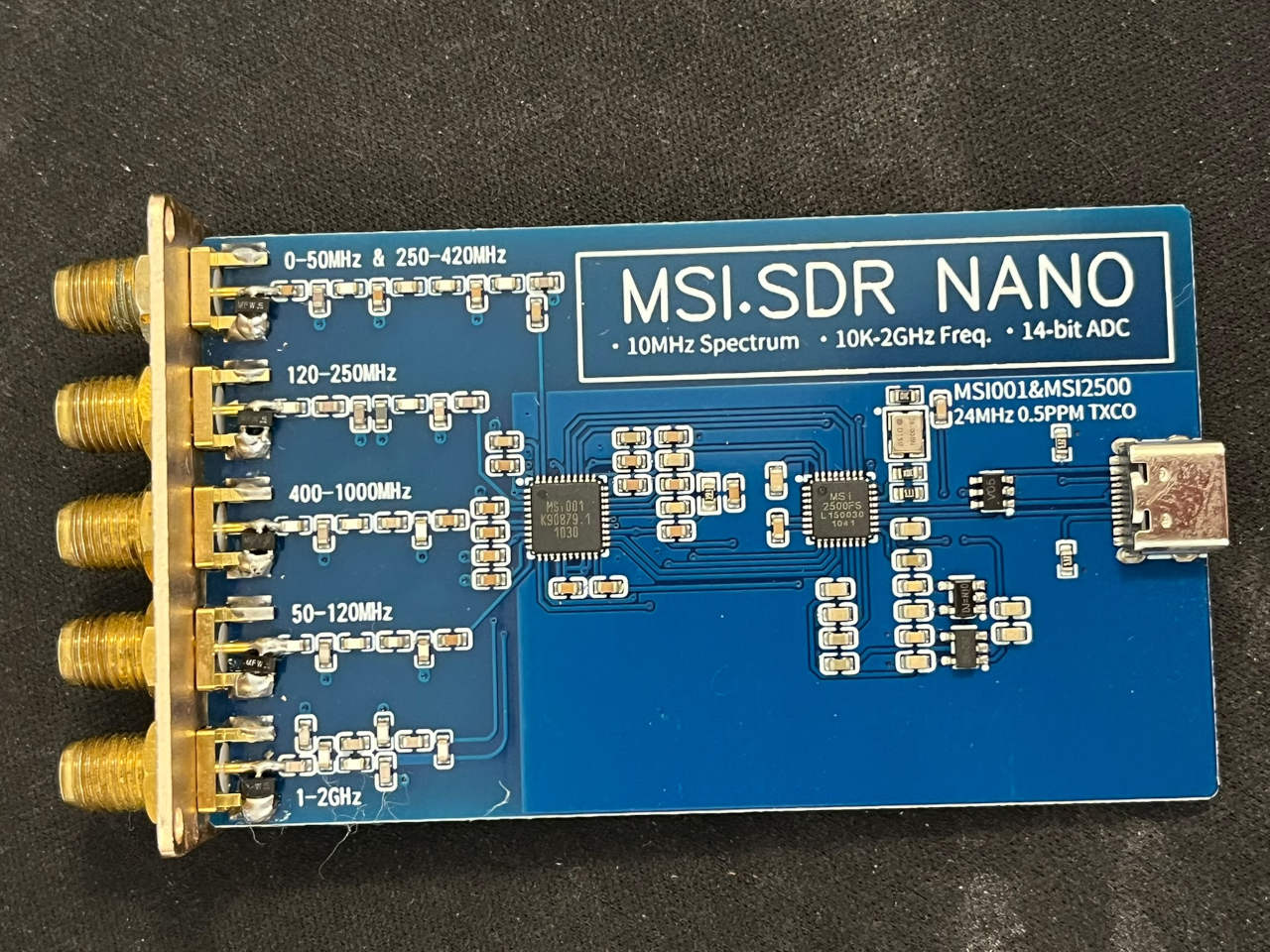
The small Chinese MSI Nano SDR is one of those inexpensive receivers advertised as compatible with the SDRplay RSP1. It works well with CubicSDR on my Intel MacBook Pro, so I decided to give SDR++ a try.
That’s where the trouble began.
SDR++ opened normally, but there was no SDRplay option in its Source menu. After getting past that problem, the receiver sometimes appeared, sometimes vanished, and occasionally took about 30 seconds to initialize before giving up.
I eventually got everything working, including normal FM reception with audio, automatic startup after reboot, and successful USB disconnection and reconnection.
Before I continue, I recommend reading the ‘What I would check first next’ paragraph, as it could save you time.
It wasn’t a single driver problem. Several things were happening, and understanding the difference between them was the key to fixing the receiver.
Here is what I found and the exact Terminal commands I used.
My setup
| Component | Configuration |
|---|---|
| Receiver | Chinese MSI Nano, RSP1-compatible |
| Device identification | SDRplay RSP1, B0020P0003 |
| Computer | Intel MacBook Pro |
| OS | macOS Ventura 13 |
| SDR++ | v1.3.0, July 5, 2026 build |
| Other software | CubicSDR |
| SDRplay API | 3.15.1 |
| SoapySDR interface | Mirics/SDRplay API 2.13 |
| USB | Direct connection, original cable |
There are several Chinese receivers sold under similar names, and they aren’t necessarily identical. This is a record of one working configuration, not a universal solution for every RSP1-style clone.
1. First, check whether the Mac sees the receiver
Before changing SDR++ or reinstalling drivers, I wanted to establish whether the radio itself was accessible.
With both SDR++ and CubicSDR closed, I opened Terminal.
Find connected SDR devices:
SoapySDRUtil --findThe result was encouraging.
Terminal output:
Found device 0
driver = sdrplay
label = SDRplay Dev0 RSP1 B0020P0003
The receiver was recognized.
If Terminal reports command not found, check whether SoapySDRUtil is installed:
command -v SoapySDRUtilOn my Intel Mac, the utility was installed under /usr/local/bin.
Finding a device is one thing. Actually opening it is another.
Probe the receiver:
SoapySDRUtil --probe="driver=sdrplay"The probe succeeded.
Relevant output:
driver=SDRplay
hardware=B0020P0003
mir_sdr_api_version=2.130000
mir_sdr_hw_version=1
It also returned the receiver’s supported sample rates, gain controls, bandwidths, and other capabilities.
That established two things: the hardware was detected, and SoapySDR could communicate with it.
One interesting detail was the API version. SoapySDR reported the older Mirics/SDRplay API 2.13. My SDR++ installation, as I later discovered, used SDRplay API 3.15.
The two programs weren’t necessarily talking to the receiver through the same software interface.
2. SDR++ had the SDRplay module, but it wasn’t appearing
SDR++ listed RTL-SDR, Airspy, PlutoSDR, and various other receiver sources.
But SDRplay was missing.
My first thought was that the module hadn’t been included in the macOS build. That assumption turned out to be wrong.
SDR++ uses separate dynamic libraries for its source modules. On macOS, the SDRplay module is named sdrplay_source.dylib.
First, I needed to find where SDR++ was actually installed.
Mine was named SDR++ 2.app, rather than the usual SDR++.app.
Locate the SDR++ executable:
find /Applications "$HOME/Applications" -name sdrpp -type f 2>/dev/nullMy executable was located at:
/Applications/SDR++ 2.app/Contents/MacOS/sdrppIf your application has a different name or location, adjust the following paths accordingly.
Check for the SDRplay source module:
ls -l "/Applications/SDR++ 2.app/Contents/Plugins/sdrplay_source.dylib"The module was present.
That changed the question. Instead of looking for a missing module, I needed to understand why SDR++ couldn’t load the one it already had.
3. The missing SDRplay API library
On macOS, otool can show which shared libraries a program or module expects to load.
Inspect the SDRplay module’s dependencies:
otool -L "/Applications/SDR++ 2.app/Contents/Plugins/sdrplay_source.dylib"One dependency stood out.
Relevant output:
@rpath/libsdrplay_api.so.3SDR++ expected the SDRplay API version 3 library.
I then checked the module’s configured library search path.
Inspect the runtime search path:
otool -l "/Applications/SDR++ 2.app/Contents/Plugins/sdrplay_source.dylib" | grep -A2 LC_RPATHRelevant output:
path @loader_path/../FrameworksThat pointed toward SDR++’s own Contents/Frameworks directory.
But the SDRplay API library was installed elsewhere on my Mac.
Locate the SDRplay API library:
find /usr/local /opt/homebrew /Library -name 'libsdrplay_api.so.3' 2>/dev/nullI found it here:
/usr/local/lib/libsdrplay_api.so.3The library existed. SDR++ simply wasn’t finding it through its configured search path.
The library-path fix
I solved this by creating a symbolic link inside the SDR++ application bundle.
Before making any changes, I checked the existing library.
Verify the source library:
ls -l /usr/local/lib/libsdrplay_api.so.3Then I checked whether the destination already existed.
Check the destination:
ls -ld "/Applications/SDR++ 2.app/Contents/Frameworks/libsdrplay_api.so.3"If the result is No such file or directory, that is expected when the destination doesn’t exist yet.
With SDR++ closed, I created the symbolic link.
Make the installed API library accessible to SDR++:
ln -s /usr/local/lib/libsdrplay_api.so.3 "/Applications/SDR++ 2.app/Contents/Frameworks/libsdrplay_api.so.3"This didn’t replace the SDRplay API. It simply made the installed library available where SDR++ expected to find it.
A caution: this changes the contents of the SDR++ application bundle. It may affect code-signature validation, and an application update might remove the link. Don’t overwrite an existing library, and don’t assume every SDR++ build needs this workaround.
Once the dependency problem was addressed, SDR++ progressed further.
But it still wasn’t ready to receive.
4. The SDRplay API service wasn’t running
Instead of guessing, I launched SDR++ from Terminal to see its startup messages.
Launch SDR++ and save its diagnostic output:
"/Applications/SDR++ 2.app/Contents/MacOS/sdrpp" 2>&1 | tee "$HOME/Desktop/sdrpp-log.txt"The output contained:
[ERROR] Could not initialized the SDRplay API.
Make sure that the service is running.
The wording was awkward, but the message pointed toward the next problem.
SDRplay API 3.x uses a background service on macOS. Although its library was installed, the service wasn’t running.
Check whether the API service is running:
ps aux | grep '[s]drplay_apiService'Nothing appeared.
I checked whether macOS had registered the service.
Check the launchd service state:
sudo launchctl print system/com.sdrplay.serviceTerminal output:
Could not find service "com.sdrplay.service" in domain for systemThe API installation was present, including its LaunchDaemon configuration.
On my Mac, that configuration was located at:
/Library/LaunchDaemons/com.sdrplay.service.plist
Check whether the service configuration exists:
ls -l /Library/LaunchDaemons/com.sdrplay.service.plistOnce I confirmed the file belonged to the installed SDRplay API, I loaded the service.
Start the SDRplay API service:
sudo launchctl bootstrap system /Library/LaunchDaemons/com.sdrplay.service.plistVerify that it started:
ps aux | grep '[s]drplay_apiService'This time, the service appeared as a process running under root.
I closed and reopened SDR++.
The missing SDRplay source appeared, and the RSP1 became available.
Finally, I could start using the receiver.
If the service is already registered, don’t repeatedly execute bootstrap. Check its current state first.
5. The receiver worked—and then disappeared again
At this point, I thought the problem was solved.
For a while, it was. SDR++ showed received signals, and I could tune FM stations and hear normal audio.
But on subsequent attempts, the receiver sometimes disappeared.
The Source panel would report:
No device availableOther times, the SDR++ log reported:
[ERROR] Could not select RSP device: sdrplay_api_FailThis was different from the earlier errors. The SDRplay module was loading and the background service was running, but the API sometimes couldn’t select the receiver.
I returned to SoapySDR to check whether the USB interface was behaving normally.
Check receiver detection again:
SoapySDRUtil --findSometimes it failed with:
libusb: error [darwin_claim_interface] interface not found
No devices found!
On one occasion, the first two attempts failed. The third detected the receiver successfully.
The SDRplay service log provided further clues.
Read recent SDRplay service errors:
sudo tail -40 /Library/Logs/sdrplayservice_err.logAmong the messages were:
libusb: warning [darwin_transfer_status] transfer error: unknown error (0xe000400e)And:
libusb: warning [libusb_exit] device still referenced
libusb: warning [libusb_exit] application left some devices open
There were also warnings about USB interfaces that hadn’t closed cleanly, along with a libusb assertion concerning cached devices.
These messages suggested a problem with USB initialization or cleanup, although they didn’t establish a single definite cause. The log didn’t provide timestamps that reliably tied every warning to a specific failed attempt.
I couldn’t conclude that the hardware was defective. The receiver was connected directly to the Mac with its original USB cable, and it had already worked with both SDR applications.
The breakthrough came from restarting the SDRplay API service.
6. The recovery procedure that worked
This was probably the most useful discovery of the whole exercise.
Instead of reinstalling drivers, rebooting the computer, or repeatedly unplugging the receiver, I tried restarting the SDRplay API service.
It restored reception.
Restarting a stalled SDRplay service
First, quit SDR++ and CubicSDR completely.
Stop the loaded SDRplay service:
sudo launchctl bootout system/com.sdrplay.serviceWait approximately five seconds.
Start the service again:
sudo launchctl bootstrap system /Library/LaunchDaemons/com.sdrplay.service.plistVerify that the service is running:
ps aux | grep '[s]drplay_apiService'Then reopen SDR++, select SDRplay, refresh the device list, and start reception.
On my Mac, this restored normal operation without disconnecting the USB cable.
I could once again receive FM broadcasts, with working audio.
There is an important distinction here. If the service isn’t registered at all, bootout will fail because there is nothing to stop. In that situation, check the service state and use bootstrap directly.
This recovery procedure applies to a loaded service that has become unresponsive. It isn’t something you should need to run every time SDR++ starts.
7. The reboot problem
There was still one frustrating issue.
Every time I rebooted macOS, the SDRplay service seemed to disappear. The receiver no longer appeared in SDR++, and I had to start the background service manually.
I first checked whether macOS considered the service enabled.
Check the saved launchd enablement state:
sudo launchctl print-disabled system | grep -i sdrplayTerminal output:
"com.sdrplay.service" => enabledThe service was enabled. Its configuration also included RunAtLoad and KeepAlive.
Yet it wasn’t being registered automatically at startup.
The next useful clue came from macOS’s background-item database.
Inspect registered background items:
sudo sfltool dumpbtmI looked for the entry named sdrplay_apiService.
It reported:
Disposition: [enabled, disallowed, visible, notified]The word disallowed stood out.
Allow SDRplay to run in the background
In macOS Ventura, I opened:
System Settings → General → Login Items
Under Allow in the Background, I located SDRplay Limited and enabled it.
I checked the registration again.
Inspect the SDRplay background-item entry:
sudo sfltool dumpbtm | grep -i -B 7 -A 5 'Name: sdrplay_apiService'Now the service reported:
Disposition: [enabled, allowed, visible, notified]That corrected a genuine macOS permission restriction.
It didn’t immediately start the service, but it removed one obstacle to automatic loading.
An additional LaunchDaemon change
During the investigation, I also discovered that the configuration file in /Library/LaunchDaemons was a symbolic link to a plist elsewhere in the SDRplay API installation.
I replaced it with a regular file owned by root:wheel.
I want to be careful here: I made both the background-permission change and the LaunchDaemon file change before the final successful reboot. I cannot prove which change was decisive, or whether both were necessary.
For anyone following this guide, I’d start with the background permission. There is no reason to replace a working LaunchDaemon merely because it is a symbolic link.
However, for completeness, this is what I did.
Advanced troubleshooting only. These commands modify a system LaunchDaemon. Use them only if the file belongs to a verified SDRplay installation, automatic startup still fails, and you have a backup. Quit SDR applications and stop the loaded service before replacing its registration file.
Check whether the LaunchDaemon is a symbolic link:
ls -l /Library/LaunchDaemons/com.sdrplay.service.plistIf the entry begins with lrwxr-xr-x, it is a symbolic link.
Copy the actual configuration to a temporary regular file:
sudo cp -L /Library/LaunchDaemons/com.sdrplay.service.plist /tmp/com.sdrplay.service.plistValidate the copied configuration:
sudo plutil -lint /tmp/com.sdrplay.service.plistDon’t continue if validation fails.
Remove the existing symbolic link:
sudo rm /Library/LaunchDaemons/com.sdrplay.service.plistInstall the configuration as a regular file:
sudo install -o root -g wheel -m 644 /tmp/com.sdrplay.service.plist /Library/LaunchDaemons/com.sdrplay.service.plistVerify ownership and permissions:
ls -l /Library/LaunchDaemons/com.sdrplay.service.plistThe new entry should begin with -rw-r--r--, indicating a regular file.
Validate the installed plist:
sudo plutil -lint /Library/LaunchDaemons/com.sdrplay.service.plistThe expected result is OK.
Again, this isn’t a routine installation step. It was one of the changes I made while investigating why the existing SDRplay service wouldn’t register after reboot.
8. The final test
After completing the changes, I restarted my Mac.
Before opening SDR++, I checked the service.
Check the SDRplay API service after reboot:
sudo launchctl print system/com.sdrplay.serviceThis time, the output contained:
state = running
pid = 298
last exit code = (never exited)
properties = keepalive | runatload
The SDRplay API service had started automatically.
I opened SDR++ normally, selected SDRplay, and found the RSP1 ready to use.
The spectrum and waterfall worked. FM reception was normal, and I could hear the stations clearly.
I also disconnected and reconnected the USB receiver. It continued to work.
That was the result I’d been trying to achieve from the beginning.
What I’d check first next time
Looking back, I probably spent more time than necessary on some of the USB warnings before understanding the overall picture.
If another MSI Nano owner finds that CubicSDR works but SDR++ does not, I’d suggest checking four things in this order.
First, confirm that the receiver is accessible. SoapySDR’s --find and --probe commands can quickly establish whether the hardware is recognized and can be opened.
Second, check SDR++’s SDRplay module. If SDRplay is missing from the Source menu, determine whether the module itself is absent or whether a required library cannot be found.
Third, check the SDRplay API service. It can be installed but not running, and SDR++ may fail to initialize the API as a result.
Fourth, try a controlled service restart when device selection fails. That was the most useful recovery procedure on my Mac.
If the receiver works until the next reboot, look at the LaunchDaemon registration and the macOS background-item permissions.
These are different problems with different symptoms. Treating them all as a generic driver issue can waste quite a lot of time.
Was the MSI Nano worth the trouble?
For me, yes.
It’s a small and inexpensive receiver, and once the software was communicating with it, it performed well enough for my experiments.
One particularly interesting detail was that CubicSDR worked through a driver reporting the older Mirics/SDRplay API 2.13, while SDR++ used SDRplay API 3.15.
That doesn’t mean API 3.15 is incompatible with the receiver. I successfully used it to receive actual FM broadcasts. But the two software paths behaved differently during troubleshooting.
The receiver itself wasn’t proven defective, and replacing it would not necessarily have solved the problem.
After working through the library dependencies, background service, and macOS startup settings, I now have a working SDR++ installation that survives reboot and USB reconnection.
Hopefully, these notes save another SDR enthusiast a few hours of trial and error.
Tested on a Chinese MSI Nano RSP1-style receiver with an Intel MacBook Pro running macOS Ventura 13, SDR++ v1.3.0, and SDRplay API 3.15.1. Other receiver revisions and software builds may require different solutions.
Useful references: SDR++ GitHub repository · SDRplay Hardware API